> For the complete documentation index, see [llms.txt](https://help.allwage.com/llms.txt). Markdown versions of documentation pages are available by appending `.md` to page URLs; this page is available as [Markdown](https://help.allwage.com/modules/payroll/employer-information.md).
# Employer Information
Updating Employer Information for Payroll Compliance
## **Employer Information for Payroll**
When setting up payroll in AllWage, it's important to remember that all payroll activities are conducted under a legal entity. This means:
1. **Legal Entity Details are Essential:**
* Your company's legal details must be accurately entered into AllWage. This includes the company’s full legal name, registration number, and tax details.
2. **Compliance with SARS:**
* You are required to report all employees associated with this legal entity to SARS and the Department of Labour on a monthly and bi-annual basis.
**Why This Matters:**
* Ensuring that your company's legal details are correctly configured in AllWage is crucial for compliance with tax laws and the Basic Conditions of Employment Act (BCEA).
In AllWage, employer information serves several critical functions:
1. **Generating Pay Slips:**
* Employer details are mandatory on all pay slips, ensuring they meet legal and formal requirements.
2. **Payments:**
* Essential for creating EFT payment files, reduces time and effort for manual payments.
3. **Filing Submissions:**
* Vital for generating various compliance documents like EMP201, EMP501, tax certificates, and UIF declarations.
## Employer Details
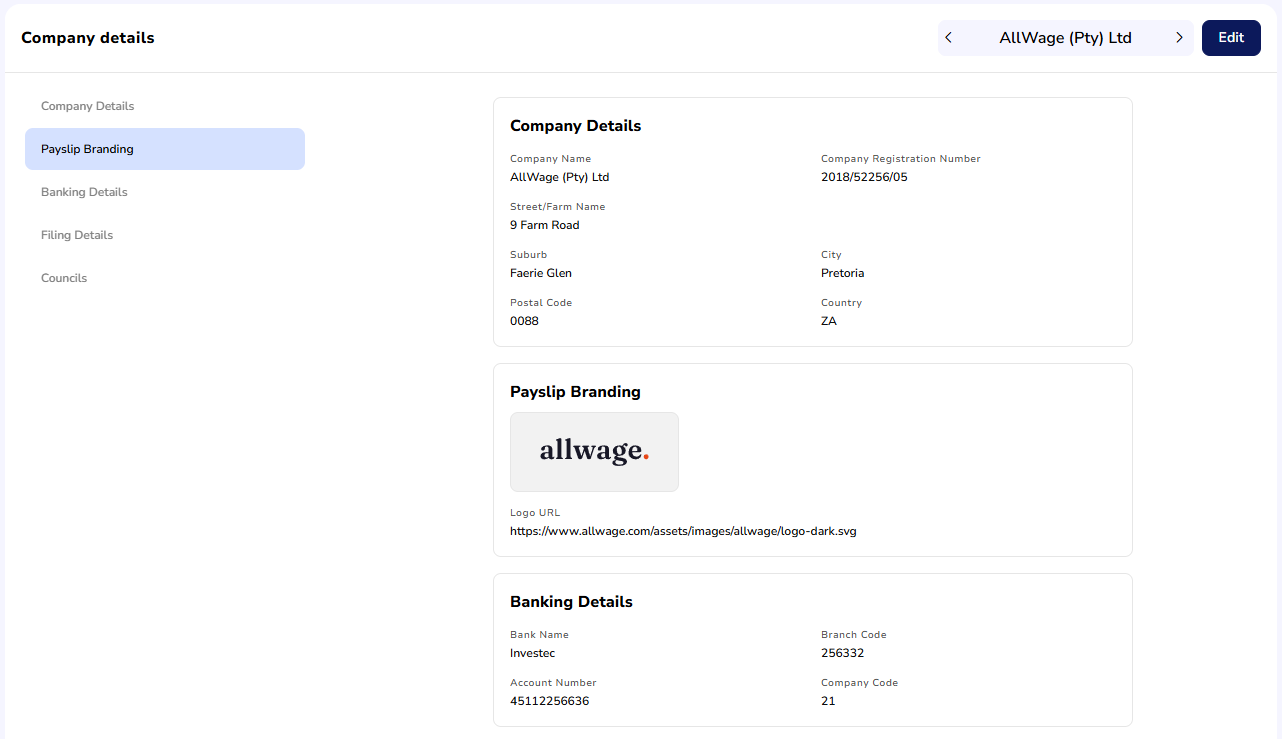
Navigate to [**Payroll > Companies**](https://app.allwage.com/#/payroll/companies), then open the company you want to view.
The company screen shows all of the company's details in a read-only view. To make changes, click **Edit** in the top right — a panel opens with the company details form where you can update the information and save.
The form captures the following information:
1. Company name (Trade name)
* Trade name as stated on official documents
2. Full address and country code
* The registration address of your company. This is also a legal requirement for payslips.
3. Banking Details - Please refer to [this section](https://help.allwage.com/modules/payroll/bank-payments.md) for more details on what banks are supported
* Bank name
* Branch code
* Account number
* Company code - Only required for Standard Bank accounts
4. Filing Details
* PAYE reference number
* UIF reference number
* **Disable SDL (Skills Development Levy) contribution for employees**
* Switch it on only if the company doesn't have to pay SDL. Read [Disable SDL](#disable-sdl) before you change it during a tax year: it also changes filings for months you've already paid.
* **SDL Reference Number**
* Created from the PAYE Employer number. You can't edit it.
* ETI Eligibility
* Please refer to [this page](https://help.allwage.com/modules/payroll/filing/employment-tax-incentive-eti.md) for more information regarding ETI
* SIC7 Code
* Standard Industrial Classification of all Economic Activities (SIC) Seventh Edition
* **UIF Declaration / IRP5 test or Live indicator** (shown as **UIF Declaration** / **IRP5** on the company's details)
* Set it to **Live** for the files you submit. For what **Test** does and how to fix a file sent as a test, see [Declaration sent as a test file](https://help.allwage.com/modules/payroll/filing/monthly-filing.md#declaration-sent-as-a-test-file).
* Employer details (SARS and Department of Labour company representative) - Required when generating tax certificates for employees
* Name & Surname
* Contact Number
* Email
* RSA ID Number
* These are the representative's filing contact details. They appear on filing documents such as tax certificates and UIF declarations, not on payslips. See [Company phone number and email on payslips](https://help.allwage.com/modules/payroll/payslip.md#company-phone-number-and-email-on-payslips).
## Disable SDL
**Disable SDL (Skills Development Levy) contribution for employees** is on the company's **Edit** panel, under **Filing Details**. It stops AllWage calculating SDL for every employee in that company. Switch it on only if the company doesn't have to pay SDL: see [Skills Development Levy (SDL)](https://help.allwage.com/modules/payroll/filing/statutory-deductions.md#skills-development-levy-sdl).
The setting has no start date. AllWage uses it as it is at the moment it calculates or files:
* **Open pay runs:** AllWage adds SDL only while the setting is off. An open pay run uses the setting as it is each time AllWage calculates it, including when you open or finalise the pay run.
* **Finalised pay runs and EMP201s:** these keep the SDL they already have. Changing the setting doesn't remove SDL from them.
* **Bi-annual and year-end filing (EMP501 and IRP5):** AllWage applies the setting to every month in the filing period, not only to the months after you changed it. While it is on, the tax certificates leave out the SDL Reference Number (2022) and SDL (4142). If any pay run in the filing period has SDL, the filing stops with the error "SDL Calculation Exclusion Violation".
{% hint style="warning" %}
Switching on Disable SDL during a tax year also affects the filings for months you've already paid. If pay runs earlier in the tax year have SDL, AllWage won't create that tax year's bi-annual or year-end filing while the setting is on. You don't need to reopen those pay runs: switch the setting off while you create the filing, as described in [SDL Calculation Exclusion Violation](https://help.allwage.com/modules/payroll/filing/filing-validation-messages.md#sdl).
{% endhint %}
## Multiple Companies
Many businesses run multiple legal entities from a single AllWage profile, such as one for general operations and another for a packhouse. When managing payroll in AllWage, employees are not separated by the entity they work for; they can clock in wherever they work. However, when configuring payroll settings in AllWage (**Payroll > Companies**), it's possible to create multiple companies. Each company should have its unique legal name, registration number, and address. These distinct companies also have their own unique filing details, which are essential for SARS submissions. It's important to note that all companies must be configured in AllWage to enable SARS filings.
When creating pay runs, each pay run can be linked to a separate company. Please refer to the pay run [configuration page](https://help.allwage.com/modules/payroll/recurring-pay-runs/pay-run-settings.md#company) for more information.
---
# Agent Instructions
This documentation is published with GitBook. GitBook is the documentation platform designed so that both humans and AI agents can read, navigate, and reason over technical content effectively. Learn more at gitbook.com.
## Querying This Documentation
If you need additional information that is not directly available in this page, you can query the documentation by asking a question.
Perform an HTTP GET request on the following URL with the `ask` and `goal` query parameters:
```
GET https://help.allwage.com/modules/payroll/employer-information.md?ask=&goal=
```
`ask` is the immediate question: it should be specific, self-contained, and written in natural language.
`goal` is what the user is ultimately trying to achieve, the reason they need the answer. Sharing it helps GitBook give you a better, more relevant answer. A goal is most helpful when it describes the outcome the user wants rather than restating the question. For example, with `ask=how do I create an API token`, a goal like `automate deployments from our CI pipeline` lets GitBook tailor the answer to that use case.
The response will contain a direct answer to the question and relevant excerpts and sources from the documentation.
Use this mechanism when the answer is not explicitly present in the current page, you need clarification or additional context, or you want to retrieve related documentation sections.