> For the complete documentation index, see [llms.txt](https://help.allwage.com/llms.txt). Markdown versions of documentation pages are available by appending `.md` to page URLs; this page is available as [Markdown](https://help.allwage.com/modules/payroll/employee-information/how-to-reinstate-re-enroll-an-employee.md).
# How to reinstate / re-enroll an employee
When an employee gets re-employed with the company you don't need to recreate that employee from scratch. You can just re-enroll them without having to recapture all of their information.
### Step 1: Enroll the employee
1. Navigate to either Payroll, Employees OR Manage employees.
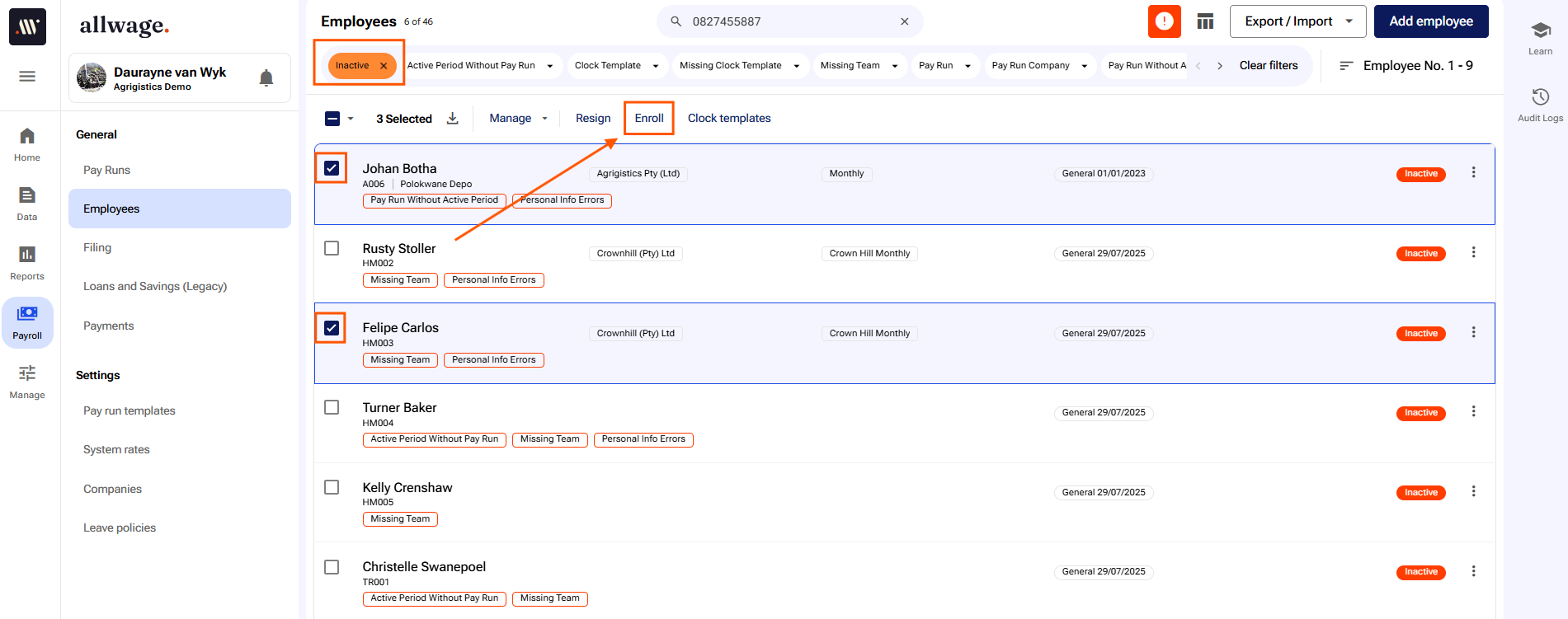
2. Click on the orange Active filter on the top and then select inactive.
3. Locate the employee(s) that you want to re-enroll and click on their checkbox(s).
4. Click on Eroll on the top:
There will be a small pop up stating that this employee has been successfully enrolled on the bottom left hand side. These employees will now 'disappear' from your page because they will now fall under the active employees again.
### Step 2: Check clock template and re-assign the template if necessary
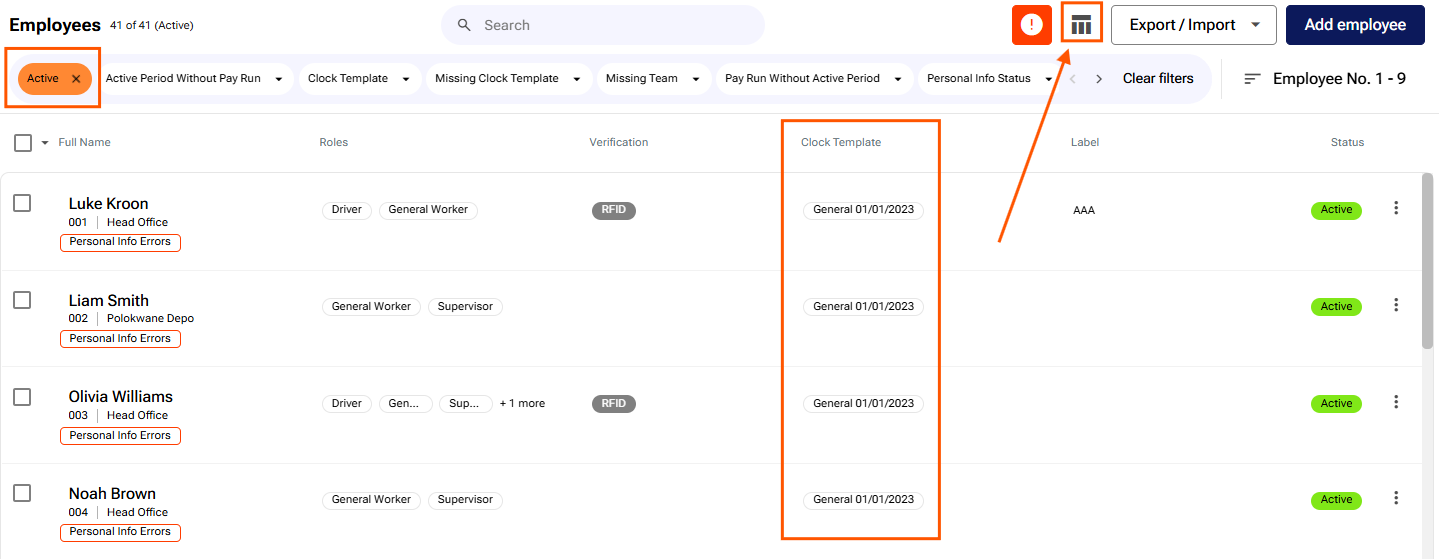
1. In the same employees page as per the previous step, click on the orange inactive button and select active again.
2. Click on the icon next to Export/Import ( it looks like a small spreadsheet and when hovering your mouse over it, it will say Set default view)
3. Select Time & Attendance
4. Now check the clock template column for that employee line:
5. If the clock template assigned to the employee is still the correct one - no further actions needs to be taken. If however there is no clock template, or if the clock template needs to be changed, click on the checkbox next to the employee(s) name:
1. Click on Clock Templates on the top of the page.
2. Click on Assign.
3. Select the date that this person needed to start in this clock template.
4. Click on the + next to No clock template linked and select the correct clock template from the drop down.
5. Click on Assign
### Step 3: Add the employee to the correct Pay Run
1. Navigate to Payroll, [Pay Runs](https://app.allwage.com/#/payroll/templates).
2. Select the new pay run that this employee should go into.
3. Click on Add employee.
4. Click on the + next to No Employee linked.
5. Search and select the relevant employee.
6. You can use the pencil to edit the templates for this employee and make sure to add the template that is applicable to this employee.
7. Click on Add.
View our full guide to add employees [here](#add-the-employee-to-the-new-pay-run).
### Step 4: Add the new active period for the employee
1. Once the employee has been added to the pay run you can enter their profile by clicking on their name (not the checkbox).
2. Click on Active period on the left hand side.
3. Click on Add Active period on the top right hand side.
4. Enter the start date and the correct company from the drop down.
5. Click on Add.
View our full guide to add an active period to an employee [here](/modules/payroll/employee-information.md#adding-an-active-period-to-individual-employees).
---
# Agent Instructions
This documentation is published with GitBook. GitBook is the documentation platform designed so that both humans and AI agents can read, navigate, and reason over technical content effectively. Learn more at gitbook.com.
## Querying This Documentation
If you need additional information that is not directly available in this page, you can query the documentation dynamically by asking a question.
Perform an HTTP GET request on the current page URL with the `ask` query parameter, and the optional `goal` query parameter:
```
GET https://help.allwage.com/modules/payroll/employee-information/how-to-reinstate-re-enroll-an-employee.md?ask=&goal=
```
`ask` is the immediate question: it should be specific, self-contained, and written in natural language.
`goal` is optional and describes the broader end goal you are ultimately trying to accomplish on behalf of the user. GitBook uses it to tailor the answer towards what is most useful for that goal.
The response will contain a direct answer to the question and relevant excerpts and sources from the documentation.
Use this mechanism when the answer is not explicitly present in the current page, you need clarification or additional context, or you want to retrieve related documentation sections.