> For the complete documentation index, see [llms.txt](https://help.allwage.com/llms.txt). Markdown versions of documentation pages are available by appending `.md` to page URLs; this page is available as [Markdown](https://help.allwage.com/modules/councils/reports-and-submissions.md).
# Council Reports & Submissions
Review, generate, and file your monthly council submissions — the same simple flow for every council.
Council submissions are legal filings with deadlines, so AllWage guides you through a consistent flow for every council: **review the figures, finalise them, download or copy the submission, then mark it as filed.** The steps are the same for every council — only the contents of each submission differ.
## Finding your council submissions
1. Open the **Payroll / Reports** area and go to **Council Reports**.
2. Choose the council you want to file for.
Each council has its own page, because each council runs on its own fiscal year and its own monthly layout.
## The council page
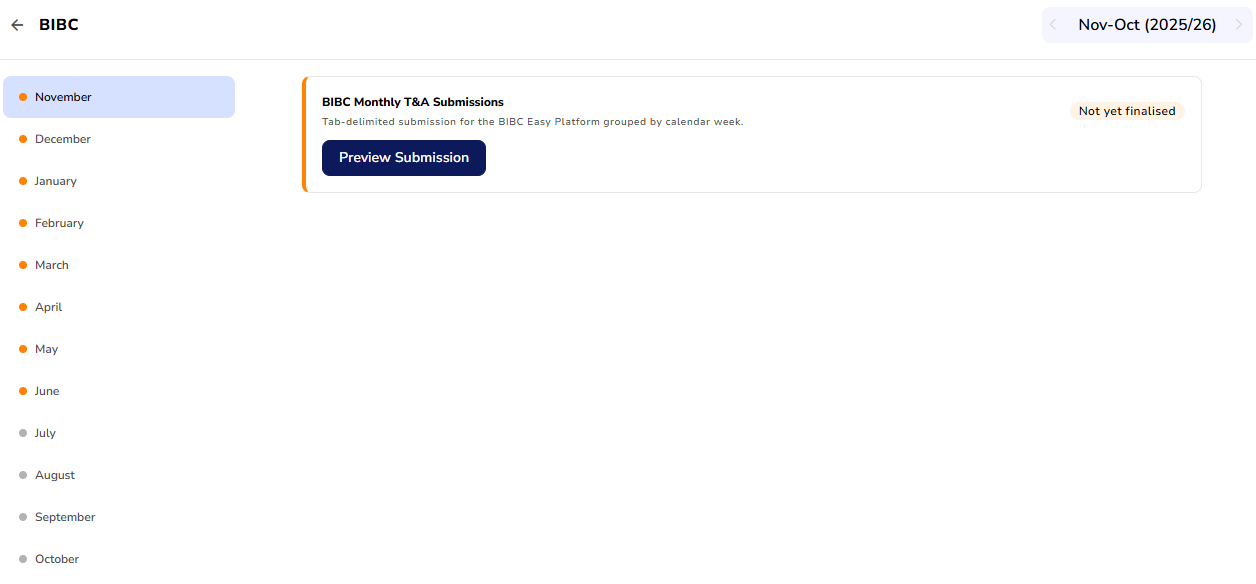
A council's page is organised around its **financial year** and the **months** within it:
* **Year selector** (top right) — each council has its own financial year, so you pick the year you're filing for here.
* **Month list** (left) — the months in the selected year, each with a status marker so you can see at a glance where every month stands.
* **Main area** — the submission(s) for the month you've selected.
### Month status at a glance
Each month shows a coloured marker so you can see where it stands at a glance:
| Marker | Meaning |
| -------- | --------------------------------------------------------------------- |
| 🔴 Red | There are issues to resolve before the submission can be generated |
| 🟠 Amber | In progress — generated or finalised, but not yet marked as submitted |
| 🟢 Green | Submitted — you've confirmed this month is filed with the council |
## The flow, step by step
### 1. Resolve any issues first
If a month has missing or invalid information (for example, an employee is missing a required council detail), the submission is **blocked** until it's fixed. The month shows as having issues, tells you how many, and links you to where to fix each one. You can't generate a submission from incomplete data.
A blocked month isn't always missing data — it can also mean something in your setup would produce figures the council won't accept. Each message explains what it found and links you to where to correct it. For the messages specific to a council, see that council's own page: [If the BIBC return won't finalise](/modules/councils/bibc.md#if-the-return-wont-finalise).
### 2. Review before you download
When a month has no issues, open it and **review the submission**. This opens a panel showing exactly what will be filed, based on your current employee, time & attendance, and payroll information. Take the time to check the figures here — this is your chance to catch anything before it goes to the council.
### 3. Finalise
When you're happy the figures are correct, **finalise** the submission. Finalising captures the figures as the version you intend to file, and records who finalised it and when. If the underlying data changes later, you can rebuild it (see *Correcting a submission* below).
### 4. View and download, then file with the council
Once finalised, click **View & Download Submission** to open the submission and produce it in the format your council needs:
* Some councils want a **file** you download and send to them.
* Others want you to **copy** the submission and paste it into their online platform.
The exact method is covered on each council's page (see [BIBC](/modules/councils/bibc.md)). You can view and download as many times as you need — it doesn't change anything.
### 5. Mark as submitted
After you've actually filed with the council, come back and **mark the month as submitted**. This turns the month green so you and your team can see at a glance which months are done. AllWage doesn't talk to the council to confirm this — it's your record that the job is complete.
## Correcting a submission
If you spot a mistake after finalising, first correct the underlying information (for example, fix an employee detail or a shift). Then open the month's menu and choose **Regenerate** — AllWage produces a fresh version of the submission using the corrected data, ready to view, download, and file.
{% hint style="info" %}
Correcting information doesn't change a submission on its own — nothing updates until you **Regenerate**. So the version on the card stays exactly as you left it until you deliberately regenerate it.
{% endhint %}
## What each council covers
The steps above are identical for every council. What differs — the details captured, how figures are worked out, and the exact submission format — is on each council's own page:
* [BIBC monthly submission](/modules/councils/bibc.md)
---
# Agent Instructions
This documentation is published with GitBook. GitBook is the documentation platform designed so that both humans and AI agents can read, navigate, and reason over technical content effectively. Learn more at gitbook.com.
## Querying This Documentation
If you need additional information that is not directly available in this page, you can query the documentation by asking a question.
Perform an HTTP GET request on the following URL with the `ask` and `goal` query parameters:
```
GET https://help.allwage.com/modules/councils/reports-and-submissions.md?ask=&goal=
```
`ask` is the immediate question: it should be specific, self-contained, and written in natural language.
`goal` is what the user is ultimately trying to achieve, the reason they need the answer. Sharing it helps GitBook give you a better, more relevant answer. A goal is most helpful when it describes the outcome the user wants rather than restating the question. For example, with `ask=how do I create an API token`, a goal like `automate deployments from our CI pipeline` lets GitBook tailor the answer to that use case.
The response will contain a direct answer to the question and relevant excerpts and sources from the documentation.
Use this mechanism when the answer is not explicitly present in the current page, you need clarification or additional context, or you want to retrieve related documentation sections.