> For the complete documentation index, see [llms.txt](https://help.allwage.com/llms.txt). Markdown versions of documentation pages are available by appending `.md` to page URLs; this page is available as [Markdown](https://help.allwage.com/modules/councils/enrolling-employees.md).
# Enrolling Employees
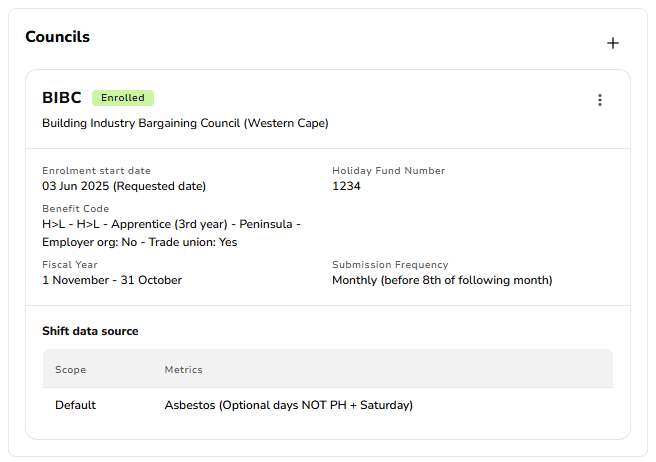
Capture the council-specific details for each employee so they're included in your council submissions.
Once your company is enrolled in a council, you capture the council-specific details for each employee who belongs to it. This is what includes them in your monthly submission. You can do this **one employee at a time** on their profile, or **in bulk** from the employee list — the quickest way when you're first onboarding a group onto a council.
## Enrolling one employee at a time
Employee council details sit on the employee's own profile, alongside their other personal and payroll information.
1. Navigate to [Payroll / Employees](https://app.allwage.com/#/payroll/employees/assigned) and open the employee.
2. Open the employee's details and find the **Council** section.
3. Choose the council and capture the required details.
{% hint style="info" %}
The Council section only appears once your company is enrolled in at least one council. See [Enabling a Council for a Company](/modules/councils/enabling-a-council.md).
{% endhint %}
## One council per employee
An employee can belong to **one council at a time**. The councils you can choose from are the ones your company is enrolled in.
## What you'll capture
Each council asks for its own employee details — for example, a membership or fund number and a skill grade or category. See the council's own page for the exact fields:
* [BIBC employee details](/modules/councils/bibc.md)
## Council details are tied to the active period
An employee's council enrolment is linked to their **current active period** at your company. This keeps their council history accurate as people come and go.
* An employee must have an **open active period** before they can be enrolled in a council.
* When an employee's active period ends (for example, they resign or transfer to another company), their council enrolment ends with it.
* If they return later on a new active period, you enrol them again. Details that stay with an employee for life — such as a lifelong fund number — can be carried over so you don't have to look them up again.
## Details that change over time
Some council details change as an employee progresses — for example, their **skill grade or category** may increase as they upskill. AllWage keeps these as a dated history: each time the value changes, you capture the new value and the date it takes effect. The previous value is kept on record.
This matters for submissions: when you generate a monthly submission, AllWage uses the value that applied during that period, not just the latest one.
## Enrolling employees in bulk
When you're onboarding a group of employees onto a council — the most common case at first setup — you can enrol them together instead of one profile at a time.
1. Go to [Management / Employees](https://app.allwage.com/#/system/employees/manage) or [Payroll / Employees](https://app.allwage.com/#/payroll/employees).
2. Select the employees you want to enrol.
3. Click **Manage** and choose **Enrol in council**.
4. Choose the council.
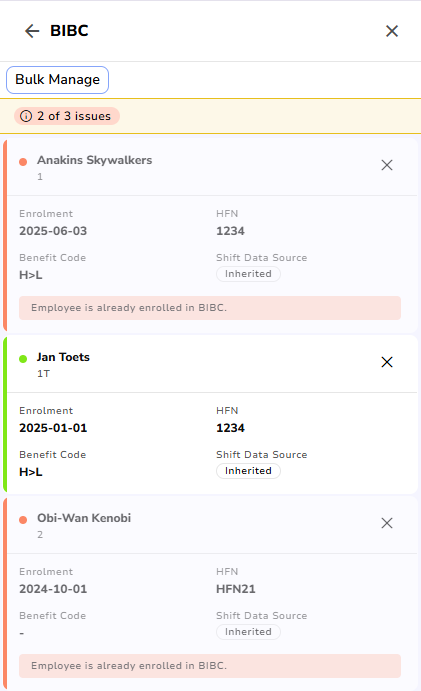
A panel opens listing every employee you selected. It shows the details required for each and flags anyone with missing or invalid information — so you can see at a glance what still needs attention before you enrol.
### Apply shared values at once
Use **Bulk Manage** at the top of the panel to set a value across employees in one step. For example:
* Set the **enrolment date** to the start of each employee's active period for the whole group at once.
* Select a group of employees and apply the same **skill grade or category** to all of them.
### Set employee-specific details
For details that are unique to each person — such as their own membership or fund number — click that employee in the panel and capture their specific fields there.
### Prefer working in a spreadsheet?
Use **Download & Upload** at the top of the panel: download a file of the selected employees with the council's required fields, fill in the values (or copy them across from a sheet you already have), and upload it back — the panel fills with what you captured, ready to review.
When every employee's required details are complete, confirm to enrol the whole group.
{% hint style="info" %}
Which details you can bulk-set and which must be captured per employee depends on the council — each council has its own set of fields.
{% endhint %}
To remove employees from a council in bulk, use the same **Manage** menu and choose **Unenrol from councils**.
## Related
* Employee personal information is managed on the same profile — see [Employee Information](/modules/payroll/employee-information.md).
---
# Agent Instructions
This documentation is published with GitBook. GitBook is the documentation platform designed so that both humans and AI agents can read, navigate, and reason over technical content effectively. Learn more at gitbook.com.
## Querying This Documentation
If you need additional information that is not directly available in this page, you can query the documentation by asking a question.
Perform an HTTP GET request on the following URL with the `ask` and `goal` query parameters:
```
GET https://help.allwage.com/modules/councils/enrolling-employees.md?ask=&goal=
```
`ask` is the immediate question: it should be specific, self-contained, and written in natural language.
`goal` is what the user is ultimately trying to achieve, the reason they need the answer. Sharing it helps GitBook give you a better, more relevant answer. A goal is most helpful when it describes the outcome the user wants rather than restating the question. For example, with `ask=how do I create an API token`, a goal like `automate deployments from our CI pipeline` lets GitBook tailor the answer to that use case.
The response will contain a direct answer to the question and relevant excerpts and sources from the documentation.
Use this mechanism when the answer is not explicitly present in the current page, you need clarification or additional context, or you want to retrieve related documentation sections.